Centrelink Login – Step-by-Step Guide 2026 | ServicesAustraliaPortal.com
Logging in to Centrelink shouldn’t feel stressful, but sometimes it does. Maybe myGov won’t load, maybe you’ve forgotten your password, or maybe you’re simply not sure where to click. That’s completely normal. This guide walks you through the entire Centrelink login process step by step, in plain Australian English, so you can get into your account with confidence.
What Is the Centrelink Online Account?
Your Centrelink online account is where you manage everything related to your Centrelink payments, without needing to visit a service centre. Once you’re signed in through myGov, you can check your payment dates, report your income, update your details, upload documents, and view letters from Centrelink, all from your phone or computer.
Requirements Before You Log In
Before you start, make sure you have:
- Your myGov username (usually your email address)
- Your myGov password
- Access to your linked myGov sign-in option (SMS code, myGov code app, or authenticator app)
- A stable internet connection
With these ready, logging in only takes a minute or two.
How to Create a Centrelink Online Account (If You Don’t Have One Yet)
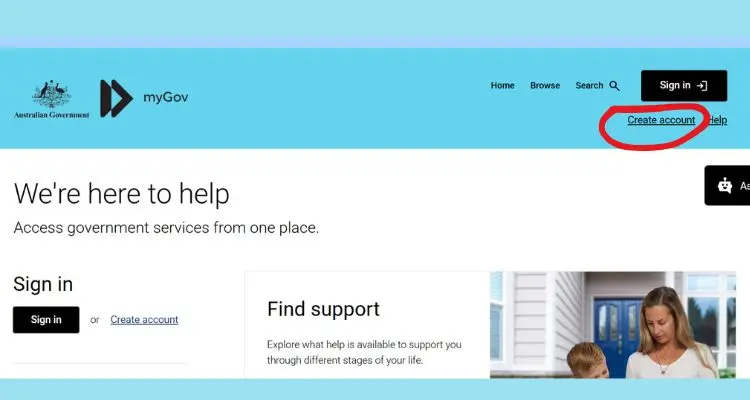
If you’re new to Centrelink online services, setting up your account is straightforward.
- Go to my.gov.au and select Create Account.
- Enter your email address and create a strong password.
- Verify your identity, usually with your Medicare card, driver’s licence, or passport details.
- Select Link a service and choose Centrelink.
- Follow the prompts to link your Centrelink Customer Reference Number (CRN) to your myGov account.
Once linked, you’ll be able to log in to Centrelink through myGov every time.
Step-by-Step Guide: How to Log In to Centrelink
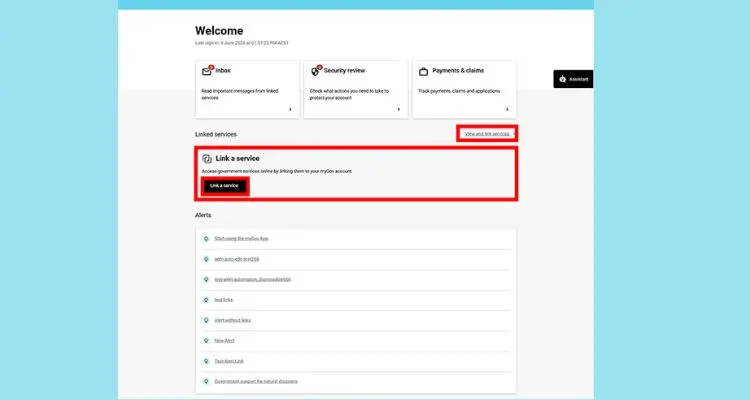
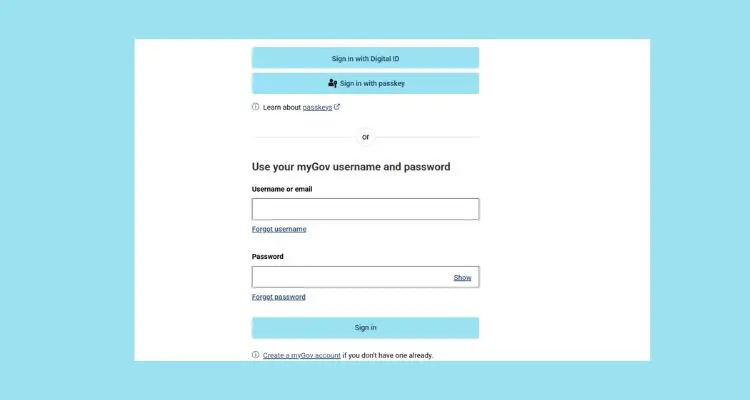
- Go to my.gov.au.
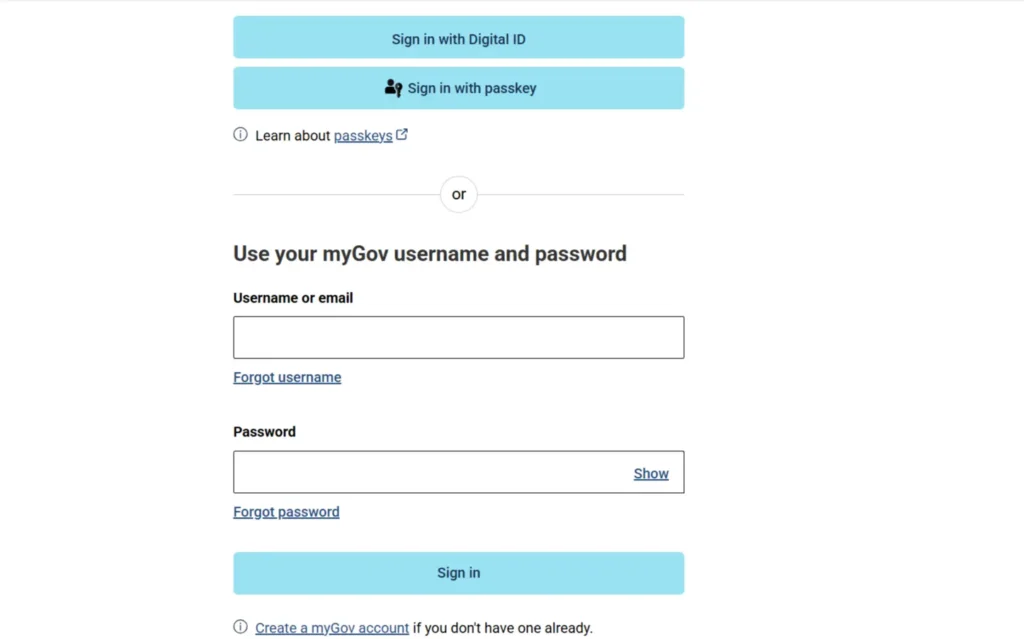
- Enter your myGov username and password.
- Complete your chosen sign-in option, such as an SMS code or the myGov code app.
- Once signed in, select Centrelink from your list of linked services.
- You’ll be taken straight to your Centrelink online account dashboard.
That’s it, you’re in and ready to manage your payments.
What You Can Do After Logging In
Once you’re signed in to your Centrelink account, you can easily:
- Check your next payment date and amount
- Report your income and update your circumstances
- Apply for a new payment or claim
- Upload supporting documents
- View and download letters and statements
- Update your bank details, address, or contact information
Everything is organised in one dashboard, so you can find what you need quickly.
Centrelink Login Errors and How to Fix Them
Most login issues have a simple fix:
- Wrong username or password – Double-check for typos, and make sure Caps Lock isn’t on.
- myGov page not loading – Try a different browser, or clear your browser’s cache and cookies.
- Account temporarily locked – Wait a few minutes and try again, or use the password reset option.
- Linking error between Centrelink and myGov – Make sure your personal details match exactly across both services.
Small mistakes happen to everyone. Knowing how to fix them quickly saves you time.
How to Reset Your myGov Password
Forgotten your password? Here’s what to do:
- On the myGov sign-in page, select Forgot password.
- Enter your myGov username and confirm your identity.
- Check your email or phone for the reset link or code.
- Create a new password and sign in again.
This process usually takes just a few minutes.
Centrelink Login Not Working? Try These Fixes
If you’re still having trouble signing in, try the following:
- Switch to Chrome, Safari, or another up-to-date browser.
- Restart your device and try again.
- Turn off browser extensions that might be blocking the page.
- Check that your internet connection is stable.
- Wait a little while and retry, as myGov occasionally undergoes scheduled maintenance.
Logging In to Centrelink on the Express Plus Mobile App
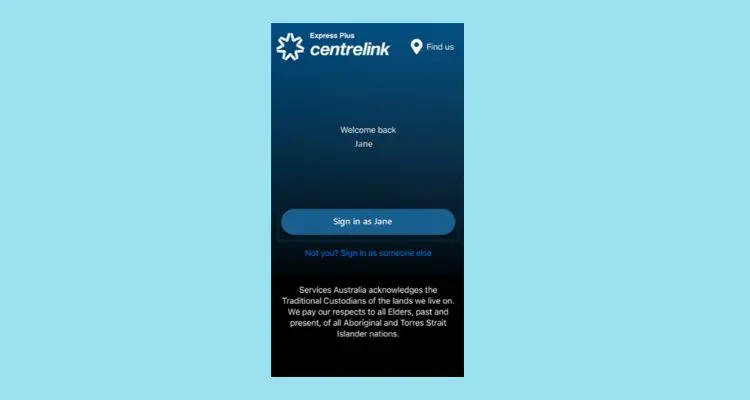
You can also access Centrelink through the Express Plus Centrelink app, available on both Android and iOS.
- Download the Express Plus Centrelink app from the Google Play Store or Apple App Store.
- Open the app and sign in using your myGov details or a linked Face ID or fingerprint option.
- Access your payments, documents, and account details straight from your phone.
The app is a convenient option if you need to check something quickly while you’re out.
How to Keep Your Centrelink Account Secure
Your Centrelink account holds sensitive personal and financial information, so it’s worth taking a few precautions. Use a strong, unique password, avoid signing in on public Wi-Fi, keep your registered email and phone number up to date, and always sign out when you’re finished. Never share your myGov password or sign-in codes with anyone, including people claiming to be from Centrelink.
FAQs About Centrelink Login
Q: I forgot my myGov username. What should I do?
Select Forgot username on the myGov sign-in page and follow the prompts to recover it using your registered email or phone number.
Q: Can I log in to Centrelink without myGov?
No, myGov is now the required way to access your Centrelink online account for most services.
Q: Why is myGov running slowly?
This is usually due to high traffic, particularly around reporting days. Try again a little later.
Q: Can I log in to Centrelink on my phone?
Yes, you can log in through your mobile browser or the Express Plus Centrelink app.
Q: Why does my sign-in code keep failing?
It may have expired or been entered incorrectly. Request a new code and enter it as soon as you receive it.
Conclusion
The Centrelink login process is simple once you know the steps. With your online account linked through myGov, you can check your payments, update your details, and manage your Centrelink claims from home or on the go. This guide is here whenever you need a refresher, so you can handle your Centrelink account with confidence.